iPhone Frequently Asked Questions and Answers
Table of contents
What is the iPhone?
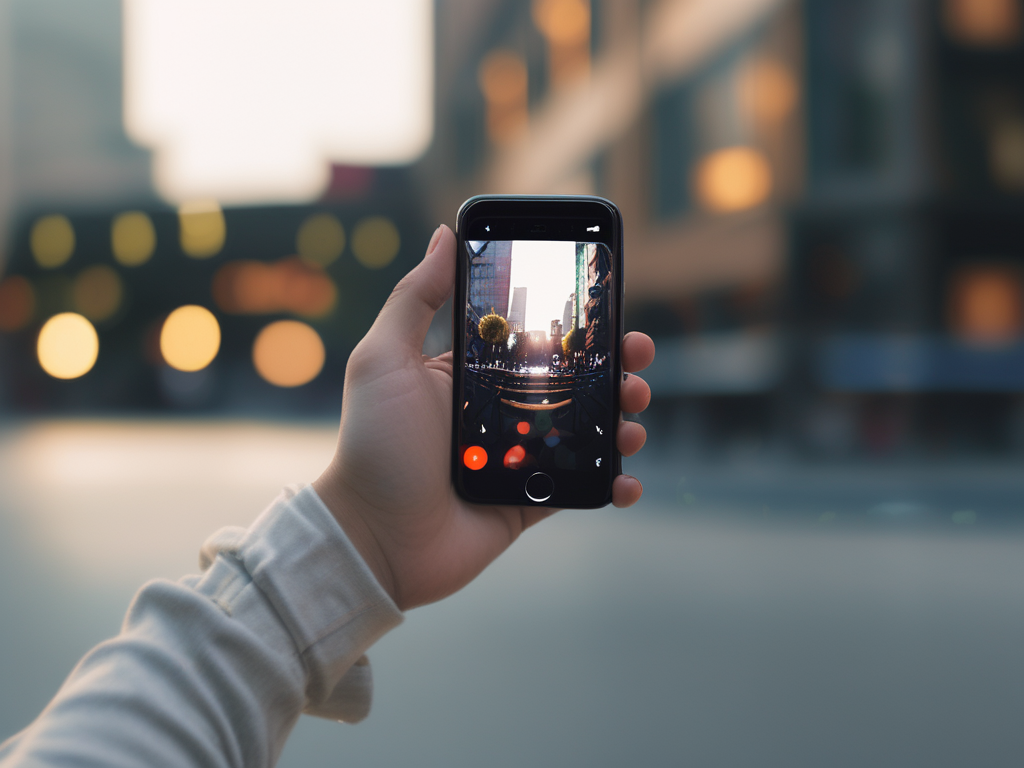
The iPhone is a line of smartphones designed and marketed by Apple Inc. It was first introduced in 2007 and has since become one of the most popular and influential smartphones in the world. The iPhone combines a phone, music and video player, internet communicator, and various other features into a single device.
Key features of the iPhone include:
- Touchscreen Interface: The iPhone uses a multi-touch screen for navigation and control, allowing users to interact with the device using gestures.
- iOS Operating System: It runs on Apple’s proprietary operating system, iOS, which supports a wide range of apps and features.
- App Store: The iPhone has access to the App Store, where users can download and install apps for various purposes, including games, productivity, social media, and more.
- High-Quality Camera: The iPhone is known for its high-quality camera, which has been improved over successive models to support advanced photography and video recording features.
- Integration with Apple Ecosystem: The iPhone integrates seamlessly with other Apple products, such as the iPad, Mac, Apple Watch, and Apple TV, providing a cohesive user experience.
- Security and Privacy: Apple emphasizes security and privacy features, including Face ID, Touch ID, and encryption.
- Design: The iPhone is known for its sleek design, high-quality materials, and attention to detail.
The iPhone has gone through many generations and iterations, each with improvements in hardware, software, and features. It has had a significant impact on the smartphone industry and has shaped the way people use and interact with mobile technology.
How to Screen Record on the iPhone?
Follow the steps below to learn how to screen record on the iphone.
Enable Screen Recording in Control Center:
- Open the Settings app.
- Tap Control Center.
- Tap Customize Controls.
- Scroll down and tap the green plus button next to Screen Recording to add it to your Control Center.
Start a Screen Recording:
- Open the Control Center by swiping down from the upper-right corner of the screen on an iPhone X or later, or by swiping up from the bottom edge of the screen on an iPhone 8 or earlier.
- Tap the Screen Recording button (a circle inside another circle). The recording will start after a three-second countdown.
- If you want to record audio, press and hold the Screen Recording button, then tap the Microphone Audio icon to turn it on.
Stop a Screen Recording:
- To stop the recording, open the Control Center again and tap the Screen Recording button, or tap the red status bar at the top of your screen and then tap Stop.
- The screen recording will be saved to your Photos app.
Finding iPhone Downloads
How to find downloads on iPhone?